Monthly
On the first, for the previous month.
Once set up, the schedule exports every completed period by itself, checks it like an export by hand and sends the file to the tax firm.
The right choice for almost every shop. Shorter rhythms create a batch per week or day that the tax firm imports one by one - they pay off with very high volume, with a tax firm that books continuously or for open items with individual debtors.
On the first, for the previous month.
On Mondays, for the previous week.
Every day, for the day before.
your-shop.com/admin
Orders › DATEV export › Tenants
Muster Handels GmbH
CancelSave
Master dataBookingAccountsTax & OSSExportSales channels
Scheduled export
Whether this client exports on its own, in which cadence and in which hour
Automatic scheduled export?
Export interval?Monthly (on the 1st, for the previous month)
Export time?6:00 - 6:59
Due next: 01.09.2026 - 30.09.2026.Last exported: 01.08.2026 - 31.08.2026.
Mail after the scheduled export
Whether and to whom the export mail goes. Each address gets its own mail with the same content.
Send the mail?
Advisor email?post@kanzlei.example
Second advisor address?team@kanzlei.example
Your own address?office@muster.example
The hour applies in the booking time zone of the tenant. The scheduled task checks every five minutes; a new export only starts in that hour, with at most one attempt per period and day, and only for a period that is completely over.

When email sending is enabled, each stored address receives a separate email with the same content after the run. Nobody sees the other addresses.
No file, but a notice to the tax firm and to you. The schedule tries the period again at its hour until the reason is fixed; the same notice goes out at most once a day.
Without bookings no file is created; the run stays in the history as proof. You get an email about it if you switch that on.
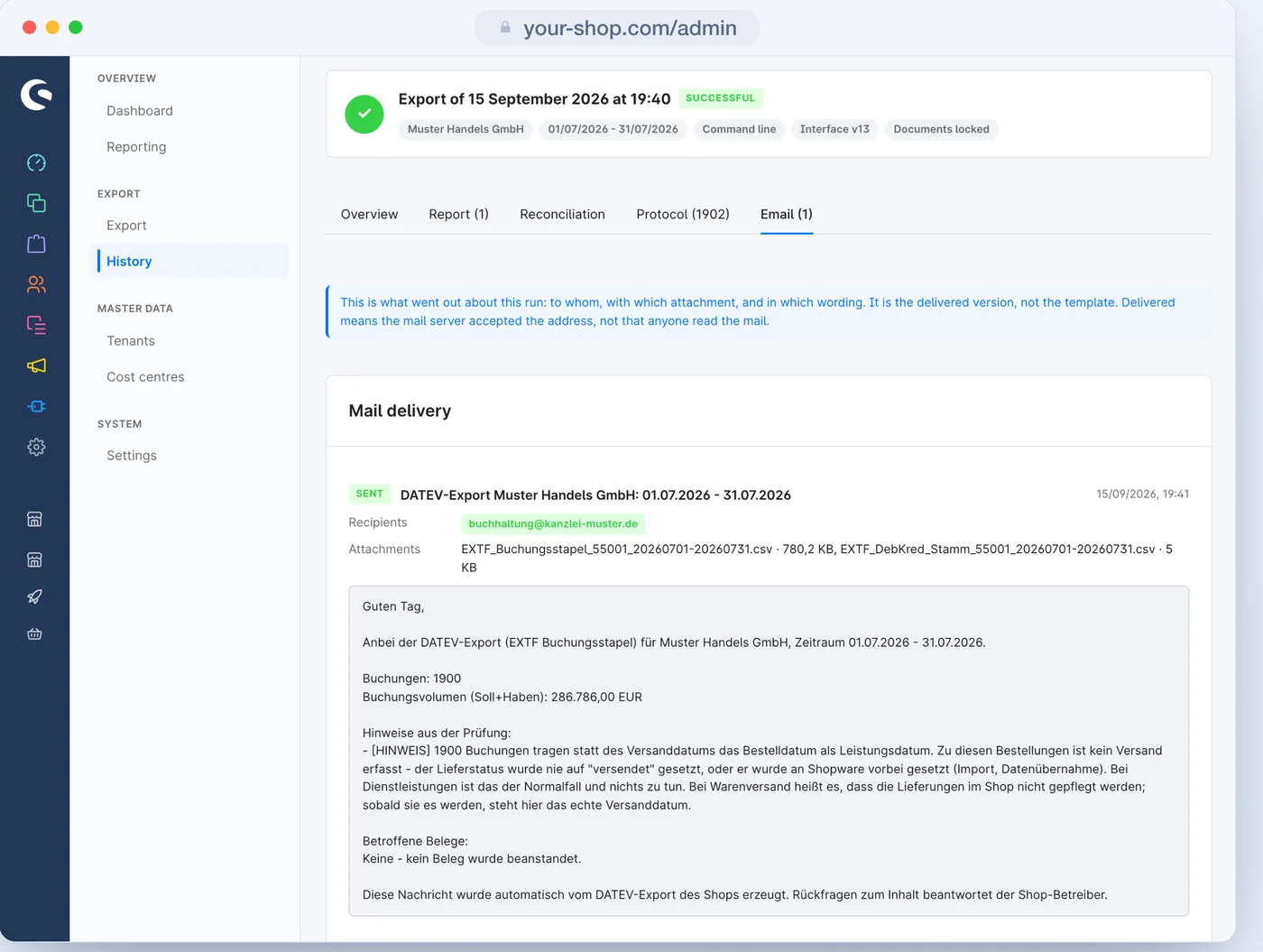
If handing the email to Shopware's mail system fails, the run records the error per address and saves the available cause. A successful handover does not confirm delivery: the email may still be queued, and later failures are not added here. The plugin does not automatically retry sending; the file remains available in the run.
If you run your own processes, call the export on the console. It calculates exactly as in the admin and appears in the history just the same.
| Call | What for |
|---|---|
bin/console dvsn-datev:export --month=2026-08 | exports one month, like "Create export" in the admin |
… --from=2026-01-01 --to=2026-06-30 | a custom period instead of a month |
… --test | test export: a real file that locks nothing |
… --mail | also sends the file to the tax firm |
… --tenant=<id> | the tenant; without it, the only active one |
bin/console dvsn-datev:scheduled-export | one tick of the schedule - for cron every five minutes when the scheduled tasks are off |
A failed delivery ends with a non-zero exit code; the export itself stays valid. In the plugin settings, scheduled tasks and console commands can each be switched off; the admin is not affected.
Then the period is still due and runs at the set hour of the next day the shop runs. The schedule works period by period and closes every gap from the first binding run on - without overlaps.
No. The schedule calculates the period with the same boundaries and the same checks as an export from the admin. It only adds the email.
What a tenant is, the five-step assistant and when you need several.
Revenue, cash, shipping and voucher accounts, the four ways to the debtor and the cost centres.
Period, preview, test export and export, the running run and the history.
Errors that stop and notices that do not - and the way to fix each one.
Every setting on the tenant and the global switches, with default and effect.
Booking batch, general reversal, freeze and the other words from DATEV and Shopware.